Layouts: Table, Board, Calendar, Gallery, Timeline, Ledger
A layout controls how the records of a table or view are displayed. Switching layouts never changes your data.
Change the layout
- Open a table or view.
- Click ⋯ (More options) → Layout.
- Pick a layout and adjust its settings in the same panel.
On a table, your layout choice is saved for you only: other people keep their own layout. To give your team a shared Board or Calendar, create a view: each view keeps its own layout. (The command palette’s Switch View changes the layout.)
You can also use the command palette (⌘K → Switch View).
Table
The default spreadsheet-style grid. Best for editing many records quickly, sorting, filtering, and bulk actions.
- Row height and Property visibility (in the ⋯ menu) control density and which columns show.
Board (Kanban)
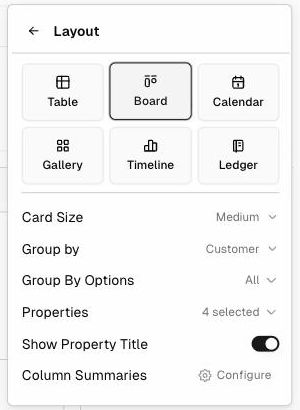
Records appear as cards in columns, grouped by a field such as Status, Stage, or Customer. Drag a card to another column to update that field: for example, moving a card from Lead to Active changes the record’s Status to Active.
| Setting | Description |
|---|---|
| Card Size | Card size (default Medium) |
| Group by | The field that defines the columns (Select, User, Reference…) |
| Group By Options | Which groups to show (All or a subset) |
| Properties | The fields shown on each card |
| Show Property Title | Show field labels on cards |
| Column Summaries → Configure | Totals or counts at the top of each column |
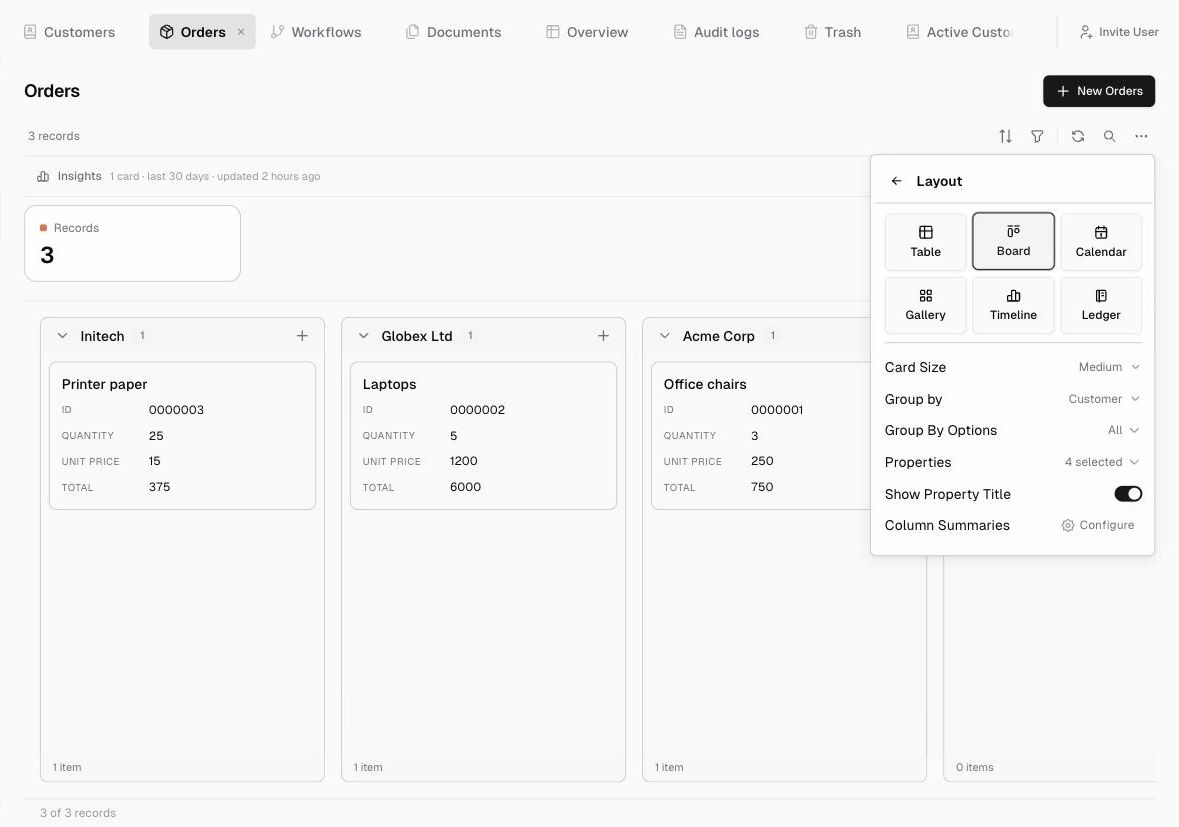
Each column has a + to add a record straight into that group. Records without a value appear under Uncategorized.
Calendar
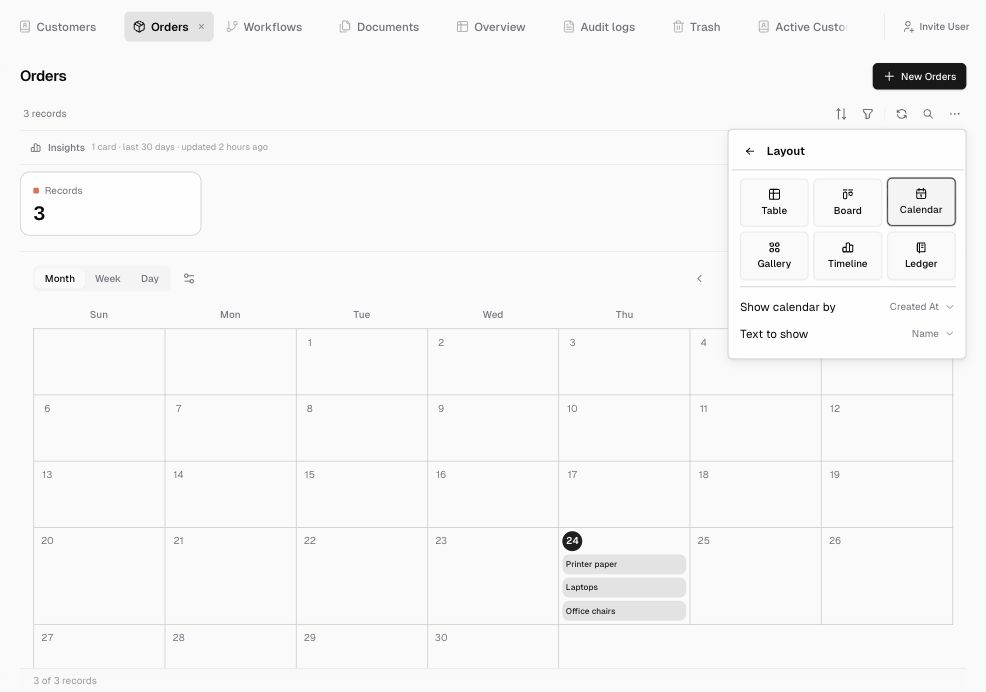
Records appear on a calendar by date. Switch between Month, Week, and Day.
| Setting | Description |
|---|---|
| Show calendar by | The date field to use (for example Due Date or Created At) |
| Text to show | The field shown on each calendar entry |
Gallery
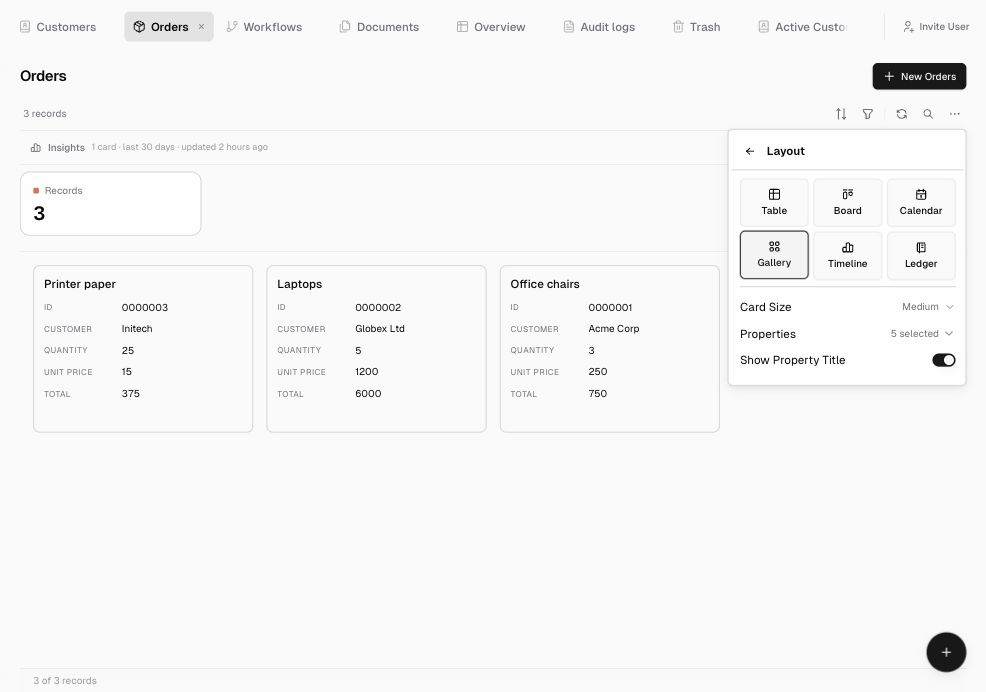
Records appear as cards in a grid. Good for products, people, and assets.
| Setting | Description |
|---|---|
| Card Size | Card size (default Medium) |
| Properties | The fields shown on each card |
| Show Property Title | Show field labels |
Timeline (Gantt)
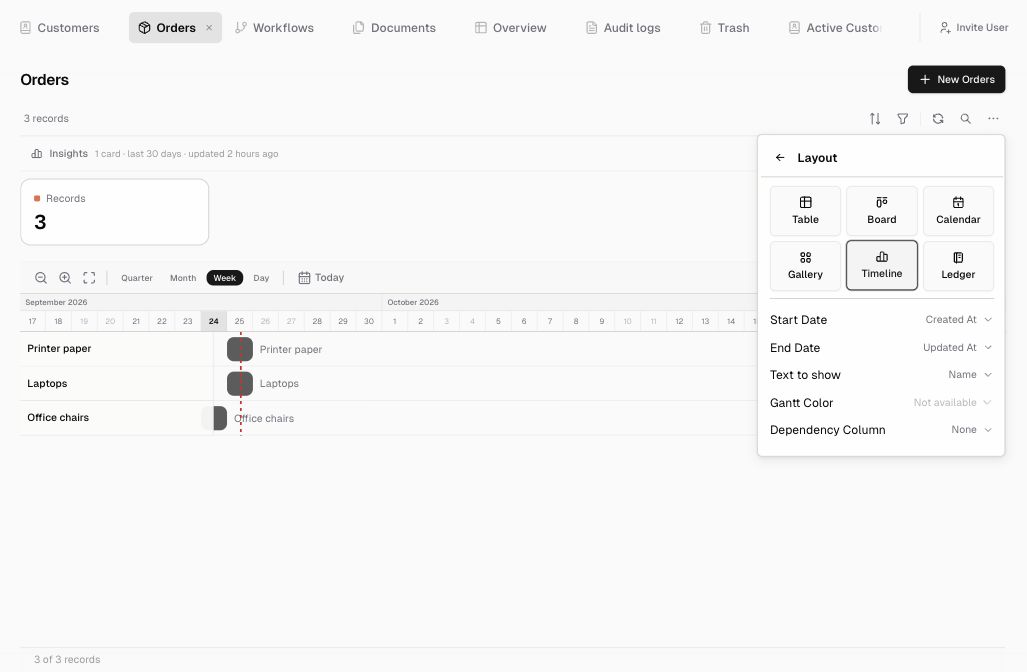
Records appear as bars across time. Good for projects, bookings, and schedules. Zoom in or out, fit to screen, and switch between Quarter / Month / Week / Day, or jump to Today.
| Setting | Description |
|---|---|
| Start Date / End Date | The fields that define each bar |
| Text to show | The label on each bar |
| Gantt Color | Color bars by a field |
| Dependency Column | A field that links tasks that depend on each other |
Ledger
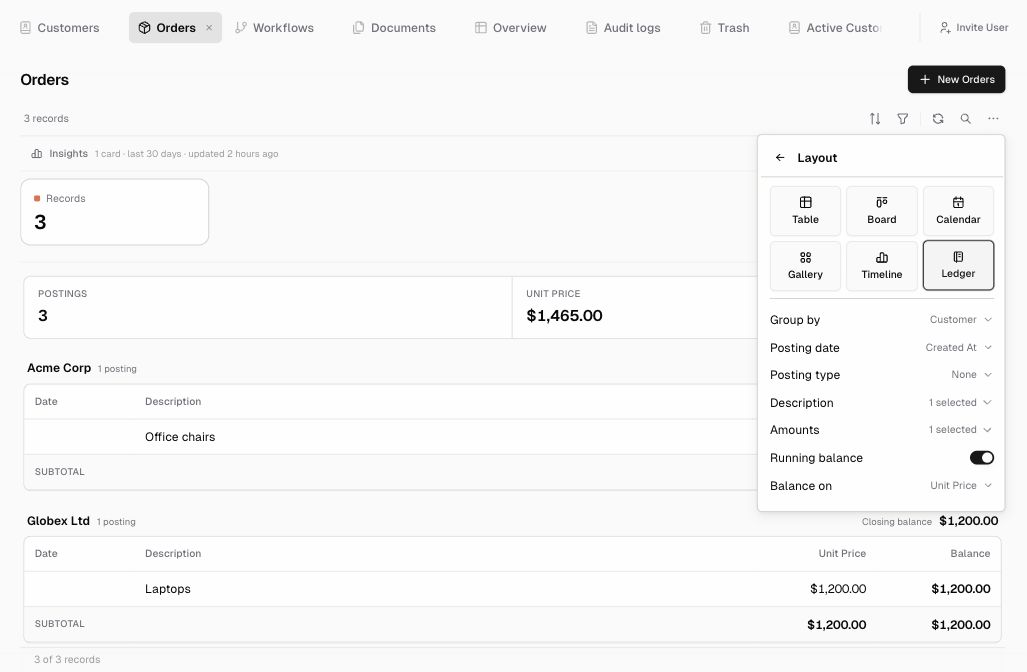
An accounting-style layout. Records are grouped, with postings, subtotals, and a running balance. Good for transactions, payments, and stock movements.
| Setting | Description |
|---|---|
| Group by | For example Customer or Account |
| Posting date | The date field used for ordering |
| Posting type | A field that marks debit or credit (optional) |
| Description | The fields shown as the description |
| Amounts | The number fields to total |
| Running balance | Show a running balance |
| Balance on | The field the balance is calculated from |
Tips
- To show a filtered set of records in a layout, create a View first, then set its layout.
- Every layout you set up is saved. Your settings are kept when you switch between layouts.