Saved logins, profile import and the vault
Proto signs in to websites with logins saved in the Vault. It fills passwords and codes without ever showing them.
How sign-in works
- First visit. If a browser profile isn’t set up for the site, Proto asks once whether to import one or skip.
- Saved login. If a saved login exists, Proto signs in directly. Passwords and one-time codes never appear in the conversation.
- Profile import. With no saved login, Proto offers to import that site’s session from your own browser. You choose the source profile and approve. Only your sign-in for that site is copied. Saved passwords are not.
- Human-only steps. If the site needs something only you can do, such as a device approval, a passkey or a CAPTCHA, Proto hands the tab to you with one clear instruction and waits.
Manage saved logins
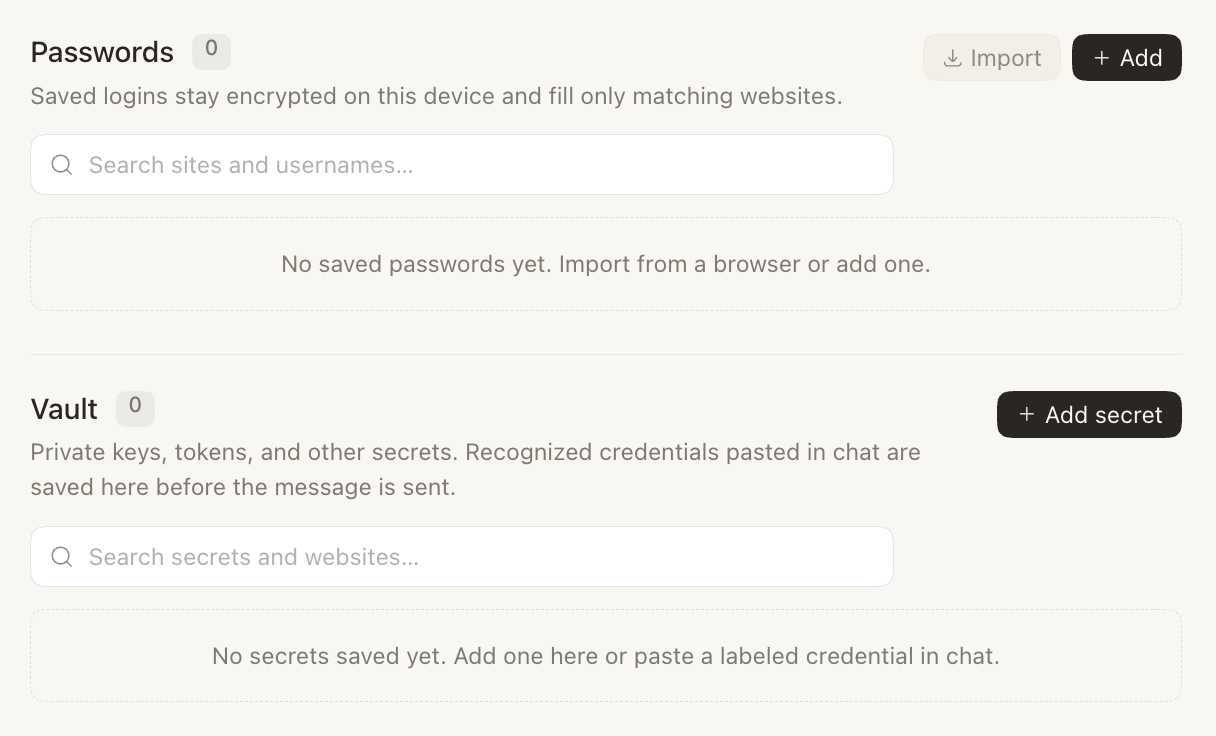
Open Settings → Browser → Vault. Passwords lists your saved logins. Use Import to bring them in from a browser, or Add to enter one. Saved logins stay encrypted on your computer and fill only on matching websites. The Vault section holds private keys and tokens. If you paste a recognizable credential into a chat, it’s saved there automatically before the message is sent. If a saved login isn’t linked to a website yet, set its website there before Proto can use it.
Passkeys
The built-in browser can’t use passkeys saved in Chrome or iCloud, and profile import doesn’t transfer them. If a passkey blocks sign-in, use the site’s “try another way” option.
Tip: If you skip profile import for a site, Proto remembers your choice and won’t ask again.