Setting up Proto and connecting ERP•AI
Proto runs as a desktop app. To build and operate ERP•AI apps, you connect it to your ERP•AI organization and choose an app to work in.
Step 1: open Proto
If you don’t have Proto yet, download it from protoagent.ai/download: macOS (Apple Silicon, DMG), Windows (x64, EXE), or Linux (x64, AppImage). Check the Official release notes on that page for what changed.
Launch the Proto desktop app. It opens to a conversation with a message box, called the composer, at the bottom.
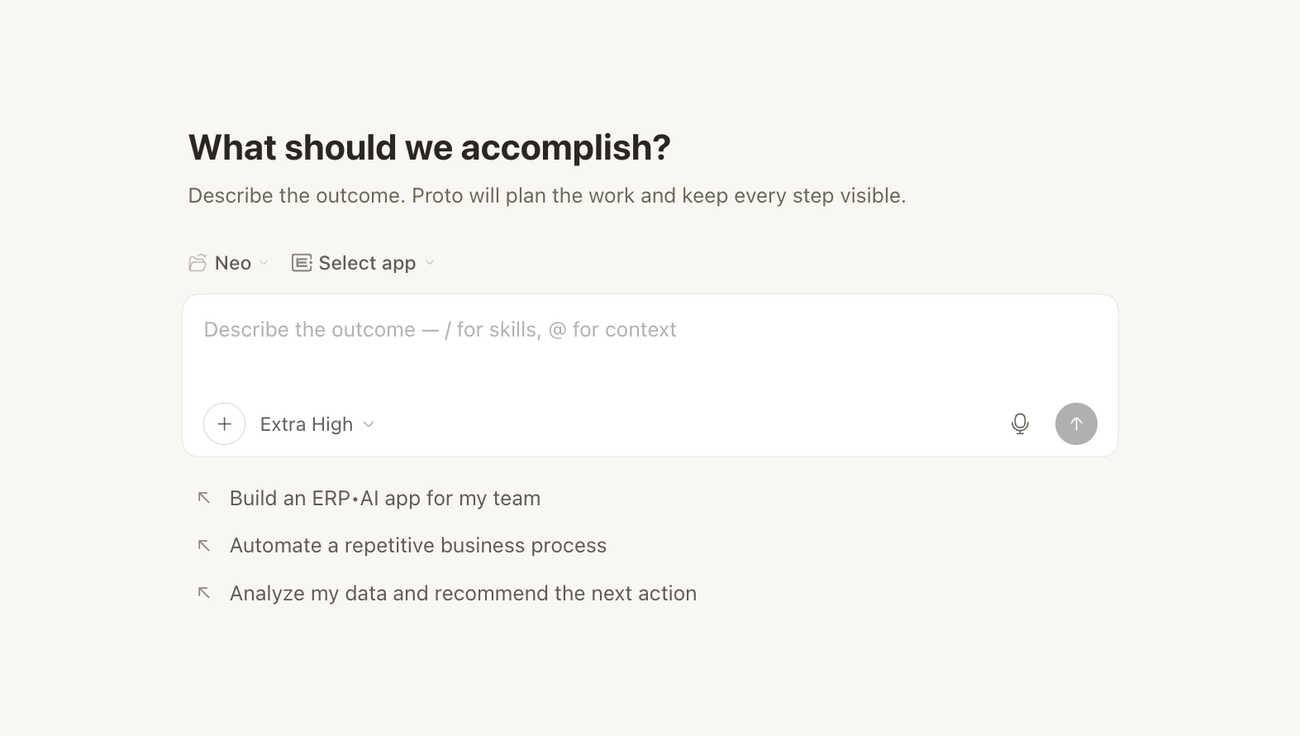
Step 2: choose a workspace folder
Proto needs a workspace folder before goals and file features work. Files Proto creates for you are saved here. Until a folder is open, goal commands show the message “Open a folder before using /goal.”
Step 3: sign in
Sign in with your ERP•AI account and choose the organization you want Proto to work in. If you don’t have an account yet, create one at apps.erp.ai/sign-up.
Step 4: choose your app
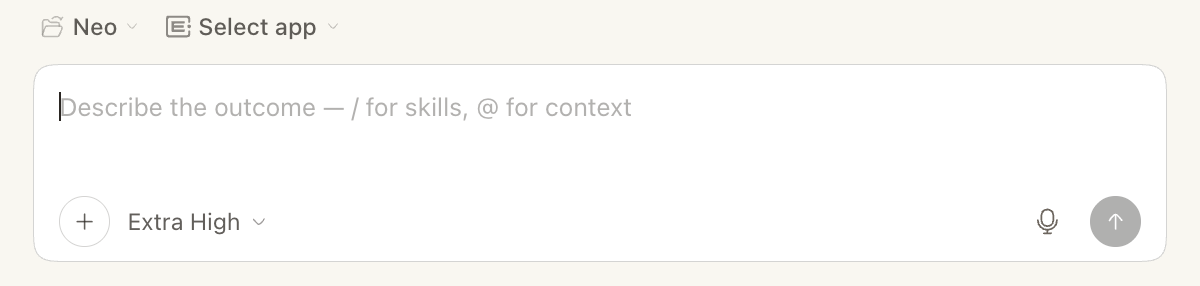
Click Select app above the composer and choose the ERP•AI app you want to work in. No app yet? Skip this step and ask Proto to build one, for example “Build a simple CRM with Customers and Deals.” See Building an App with Proto.
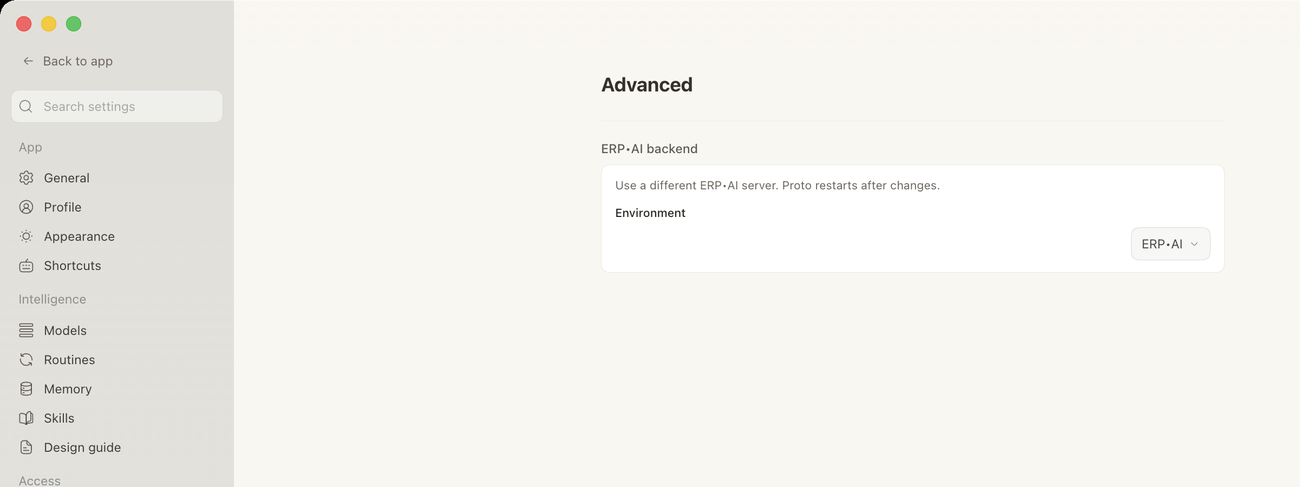
Note: Proto connects to your company’s ERP•AI server for you. If you ever need a different server, change it in Settings → Advanced → ERP•AI backend. Proto restarts after the change.
Step 5: check your app and branch
Once connected, the selected app becomes Proto’s working context. Proto works on the app’s main branch by default. You can ask it to use a separate branch for sandboxed work.
Switching app or branch later
Ask Proto to switch, for example: “Switch to the Procurement app.” Proto asks you to confirm the new target before continuing. This prevents a half-finished job from landing in the wrong app or branch.
Tip: Use /new-same-app to start a fresh conversation that keeps the same app selected.