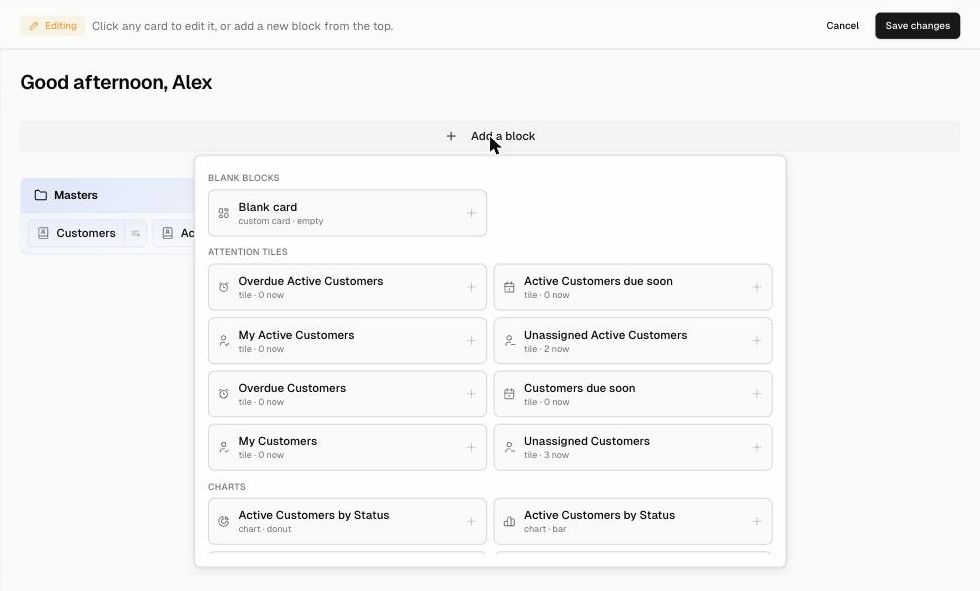
Customize your app’s Overview (home) page
Every app opens on its Overview page. The page greets the user (“Good afternoon, name”) and shows a card for each sidebar section (for example Masters, Transactions, Pages), with shortcuts to the tables and pages inside it.
You can turn the Overview into a simple dashboard by adding blocks.
Edit the Overview
- Open the app and click Overview in the sidebar.
- Click Edit Overview (top right). An Editing bar appears.
- Click + Add a block and choose a block:
| Block group | Blocks | What it shows |
|---|---|---|
| Blank blocks | Blank card | An empty custom card you configure yourself |
| Attention tiles | e.g. Overdue Customers, Customers due soon, My Customers, Unassigned Customers | A count of records that need attention |
| Charts | e.g. Customers by Status (donut or bar) | A chart of your data |
| Recent record lists | e.g. Recent Customers, Recent Orders | The newest 5 records in a table |
| AI | AI insights | An automatically generated summary of what’s happening in your app |
- Click any card to edit it, or drag cards to reorder them.
- Click Save changes, or click Cancel to discard your edits.