Personal settings: profile, preferences, notifications, shortcuts
These settings only affect you. Open Settings and look under Personal.
Profile
- Preferred name and Change photo
- Phone number (with Change number)
- Two-factor authentication: ask for a code from an authenticator app when you sign in
- Account security: your sign-in Email, and Change password
Preferences
- Appearance → Theme: choose how ERP•AI looks on this device (for example Light).
Notifications
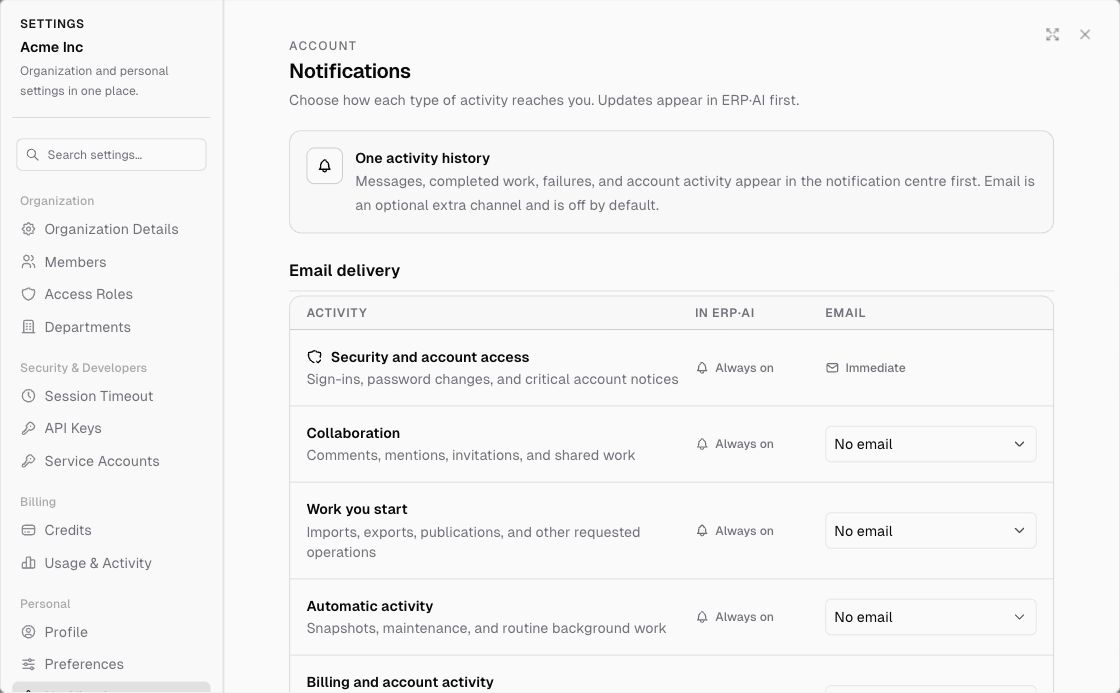
Every activity reaches you in the notification centre (bell icon) first. Email is an optional extra channel and is off by default for most activity.
| Activity | In ERP•AI | |
|---|---|---|
| Security and account access (sign-ins, password changes, critical notices) | Always on | Immediate |
| Collaboration (comments, mentions, invitations, shared work) | Always on | Off by default |
| Work you start (imports, exports, publications, and other operations you request) | Always on | Off by default |
| Automatic activity (snapshots, maintenance, routine background work) | Always on | Off by default |
| Billing and account activity (spend alerts, plan updates, account changes that aren’t security-related) | Always on | Off by default |
Use Email delivery to turn emails on, and choose digests to combine activity into fewer emails. Security and access notices always arrive immediately. Click Save changes.
Keyboard Shortcuts
See and customize keyboard shortcuts. Click a shortcut and press a new key combination to change it (Ctrl/Cmd modifiers are ignored). See the full list.