Skip to main content Enter
Proto Workflows Headless SaaS
Enterprise
Enterprise Identity, access, deployment, and support controls for contracted environments. Version control Branches, releases, snapshots, and history in the per-app Command Centre.
Enterprise Talk to sales. Deployment, support, security, procurement and commercial terms. Contact sales
Pricing
Search apps — ⌘K / Ctrl K Sign Up
Proto Workflows Headless SaaS
Enterprise
Enterprise home Version control Contact sales
Pricing
Sign Up
  1. Home
  2. Help
  3. ERP•AI guide
  4. Organization details, members, and roles

Organization details, members, and roles

Organization settings apply to the whole company tenant: every app, member, and billing item.

ERP•AI guide 2 min read Article 1 of 5 in Organization and personal settings

On this page

  1. Open Settings
  2. Organization Details
  3. Members
  4. Access Roles (organization roles)

Organization and personal settings

  1. Organization details, members, and roles
  2. Departments, session timeout, API keys, and service accounts
  3. Personal settings: profile, preferences, notifications, shortcuts
  4. Audit logs
  5. Organization dashboard

Open Settings

  • Click Settings in the organization sidebar, or
  • Open the organization menu → Organization Settings, or
  • From inside an app, go to Command Centre → Organization Settings.

The Settings window has four groups:

  • Organization: Organization Details, Members, Access Roles, Departments
  • Security & Developers: Session Timeout, API Keys, Service Accounts
  • Billing: Credits, Usage & Activity
  • Personal: Profile, Preferences, Notifications, Keyboard Shortcuts

Use Search settings… to jump to a setting, and the expand icon to open the window full-screen.
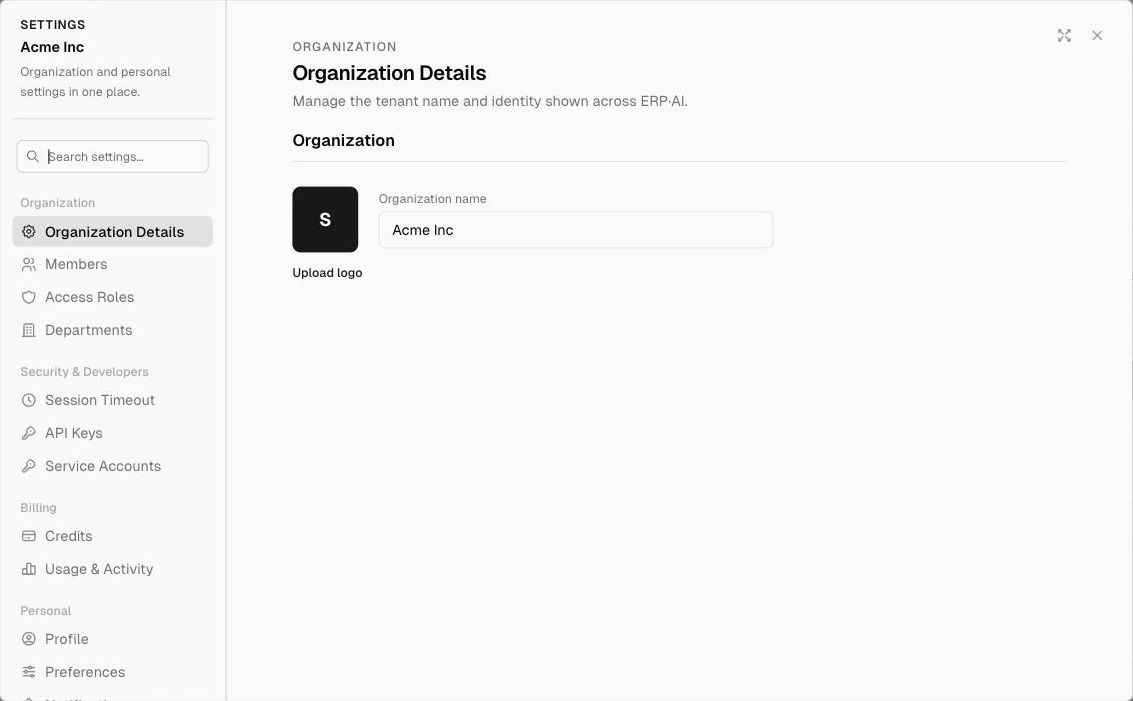
The Settings window
The Settings window

Organization Details

  • Organization name: shown across ERP•AI
  • Upload logo

Members

The people who belong to the organization. The table shows each member’s User (name and email), Department, and Role, plus a count (for example “12 members · 2 pending”). Invitations that haven’t been accepted yet are marked Pending.

Invite members
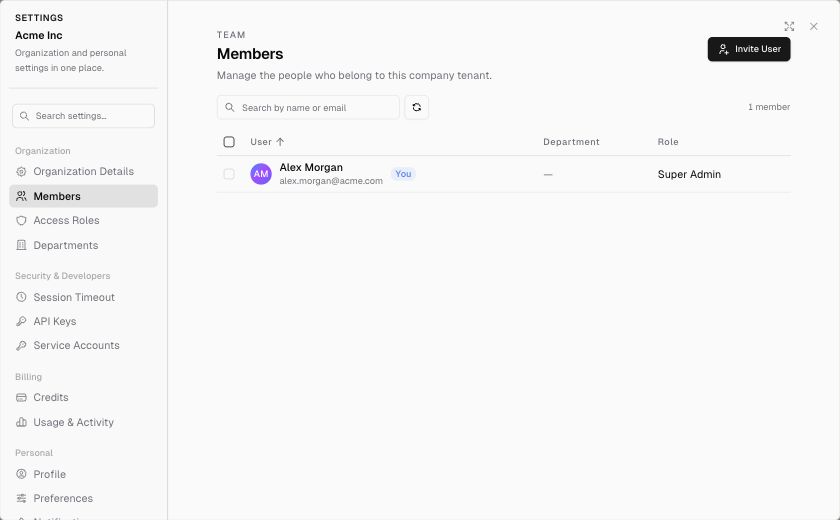
Settings › Members
Settings › Members
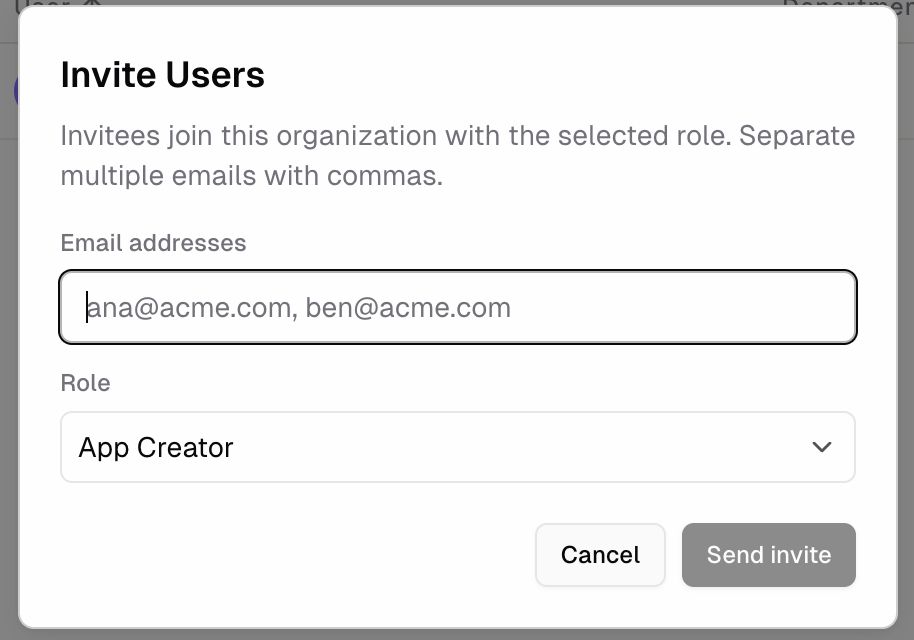
The Invite Users dialog
  1. Click Invite User.
  2. Enter one or more Email addresses, separated by commas.
  3. Choose a Role (see below).
  4. Click Send invite.

Invitees join the organization with the selected role once they accept.

Change a member’s role or remove a member

Select the member in the list and change their role, or remove them. This requires the Members & Roles → Edit / Delete permissions.

Access Roles (organization roles)
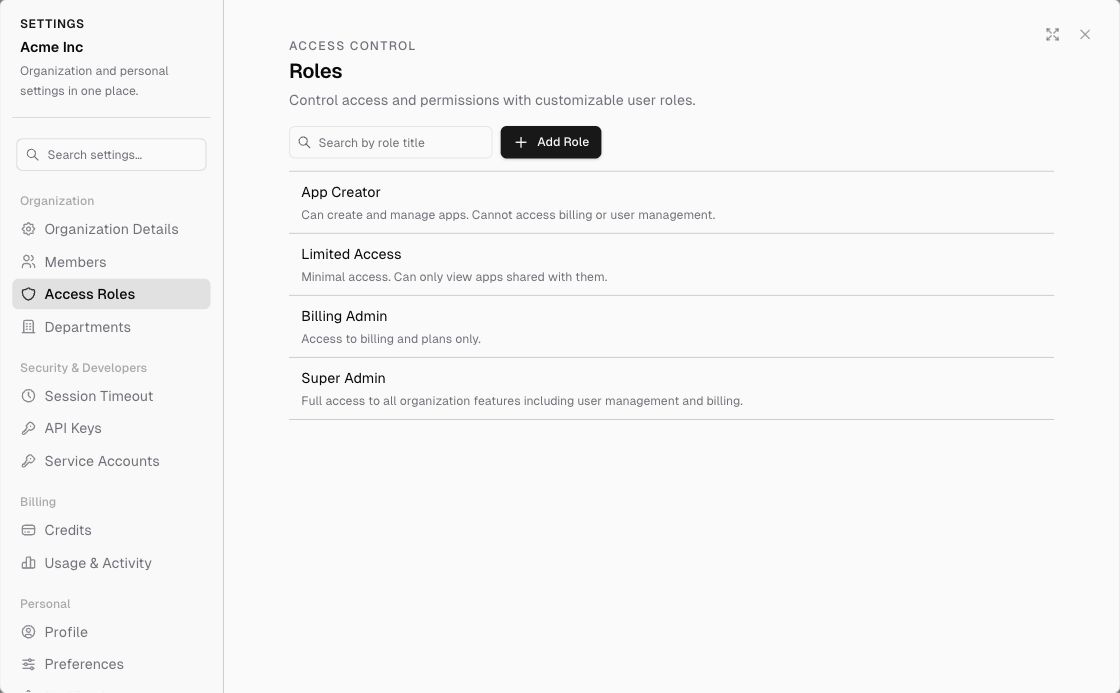
Settings › Access Roles
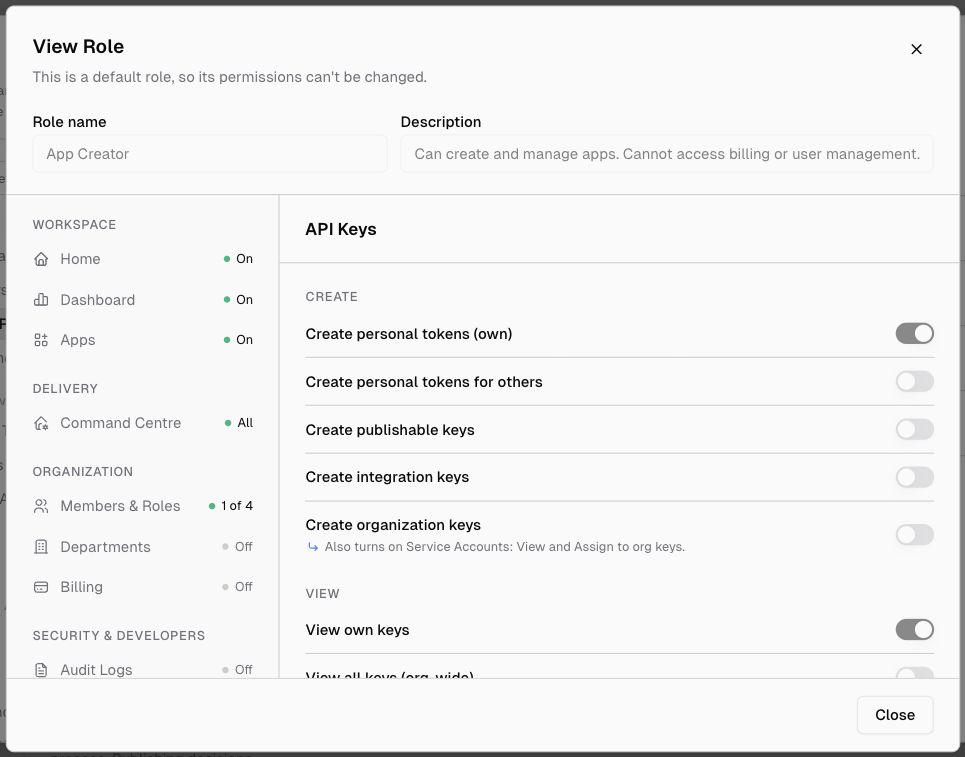
Viewing a default role’s permissions

Organization roles control what members can do across the organization. Default roles:

RoleCan do
Super AdminFull access to every organization feature, including user management and billing
App CreatorCreate and manage apps. Can’t access billing or user management.
Billing AdminBilling and plans only
Limited AccessMinimal access. Can only view apps shared with them.

Default roles can’t be edited. Click 👁 View on a role to see its permissions, or click + Add Role to create a custom role.

Organization permissions

AreaPermissions
WorkspaceView Home, View Dashboard, Create apps (create new apps, fork apps, and install apps from the catalog; this also turns on the basic Command Centre permissions)
Delivery: Command CentreView Command Centre, Manage Issues, Manage Environments, Request Deploy, Approve/Merge/Reject Deployments, Manage UAT Checklist, View Data Health, Manage API Docs
Members & RolesView, Create (invite members, add roles), Edit, Delete
DepartmentsView, Create, Edit, Delete
BillingView (credits, usage, invoices, Upgrade menu), Buy (buy credits, change auto top-up and payment methods)
Audit LogsView Audit Logs
API KeysCreate personal tokens (own / for others), publishable keys, integration keys, organization keys; view own / all keys; edit, revoke, and rotate own / any key; read the API key audit log and usage stats
Service AccountsView, Create, Edit, Delete, Assign to org keys
PublishingManage publishing: claim the publisher URL, accept the terms, publish or unpublish products

Note

Organization roles are different from app roles, which control access inside each app. See App access and permissions.

PreviousPublic forms Next Departments, session timeout, API keys, and service accounts

Related articles

Departments, session timeout, API keys, and service accounts Organize your team into departments (Sales, Finance, Operations…). Click Add Department to create one.Personal settings: profile, preferences, notifications, shortcuts These settings only affect you. Open Settings and look under Personal.

Get help from the team.

In ERP•AI, open the organization or app menu and choose Report an issue. For deployment, billing or contract questions, write to the team.

Contact the team Open ERP•AI
ERP.AI

Business apps and Proto, a personal agent for your business.

Products

  • Business Apps
  • Proto
  • Workflows
  • Headless SaaS
  • Platform

Company

  • Company
  • Enterprise
  • Pricing
  • Contact
  • Partners

Resources

  • Resources
  • Documentation
  • Help Center
  • Security
  • Legal
  • Photo credits
© 2026 ERP•AI. All rights reserved. · Built with Proto
System status

Your Privacy, Your Choice

We use essential cookies to run the site and optional cookies for features, analytics, and relevant content. See Cookie policy

Manage Your Cookie Preferences

We use cookies to enhance your experience, analyze site traffic, and serve relevant content. By clicking "Accept All," you agree to our use of cookies. You can customize your preferences at any time.

Your browser's Global Privacy Control signal is honored: advertising cookies are off.

Learn more about how we use cookies

These cookies are required for the website to function properly. They ensure security, enable basic features like page navigation, and store user session data. You cannot disable these cookies.

These cookies enable additional features that enhance your experience, such as live chat, video playback, personalized content recommendations, and remembering user preferences.

These cookies help us understand how visitors interact with our site by collecting anonymous usage data. This allows us to measure performance, detect issues, and continuously improve the user experience.

These cookies allow us and advertising partners, including X, to deliver ads tailored to your interests. They track browsing habits across sites to provide relevant advertising and measure ad effectiveness.

Meet Proto.Free to use.

A personal agent for your business.

Brief Proto. It works across your files and tools, then brings the results back.

89.5% of attempts accepted on BusinessBench.

Download Proto

Also for macOS Windows Linux

Your own model provider may charge for usage.