Releases, environments, and snapshots
ERP•AI tracks every change to your app’s structure, like a version history. That lets you see exactly what changed, test changes safely, and restore earlier states.
Releases (schema history)
Command Centre → Releases
- Activity heatmap: changes over the past year (additions and modifications)
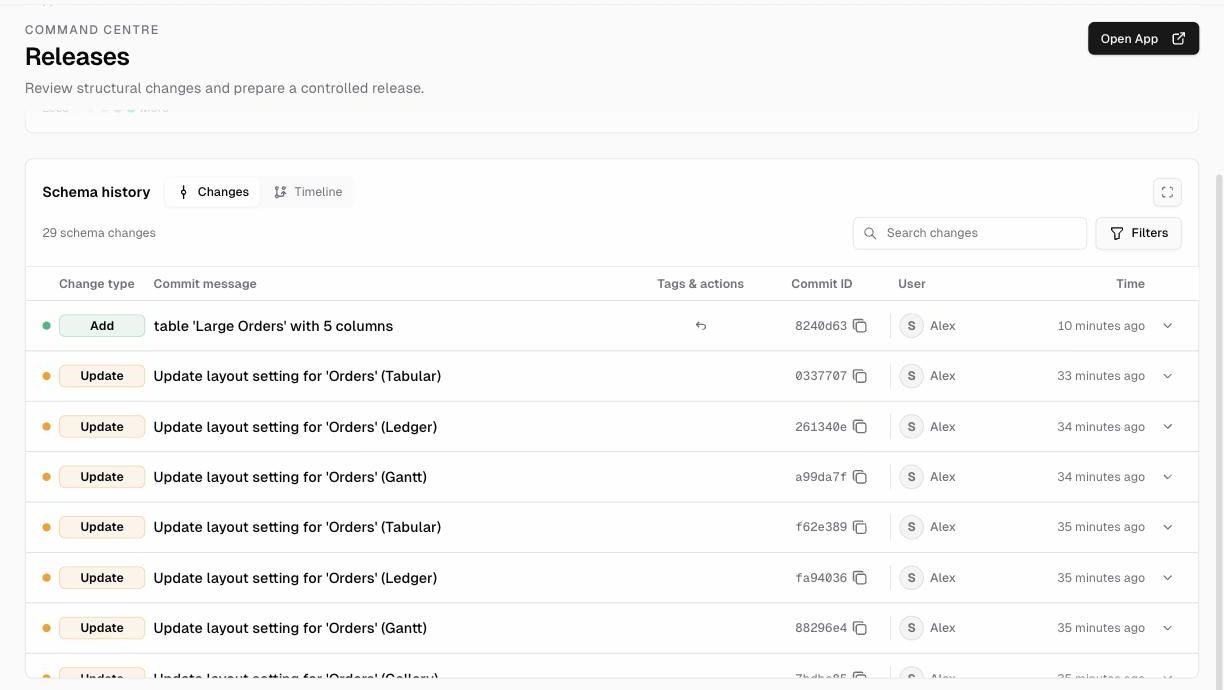
- Schema history: every change recorded as a commit, with:
- Change type (for example Add, Init)
- Commit message (for example column ‘Total’ to ‘Orders’, table ‘Orders’ with 8 columns, Add layout setting for ‘Orders’ (Board))
- Tags & actions (for example the
v1.0.0tag on the initial commit) - Commit ID, User, and Time
- Switch between the Changes list and a Timeline, and filter the history.
Use Releases to review what changed before you deploy, and to see who made each change, whether a person or Proto.
Environments and deploy requests
Command Centre → Environments
- Environments: each environment (for example main, marked Production · Active) is a separate copy of the app’s structure. Click New to add one, for example Staging.
- Deploy requests: to move changes into an environment, click Deploy on it to open a deploy request. Requests are listed as Open, Merged, or Closed, and reviewers can comment on them, approve and merge them, or reject them.
- Metrics: deploys in the last 30 days, deploy cadence, last deploy, and branches in flight.
Who can request, approve, and merge deploys is set by the organization role permissions under Command Centre (Request Deploy, Approve, Merge & Reject Deployments, Manage Environments). See Members and roles.
Recommended flow 1. Make and test changes in a non-production environment. 2. Complete the UAT Checklist. 3. Open a deploy request to Production. 4. A reviewer approves and merges it.
Snapshots (backups)
Command Centre → Snapshots
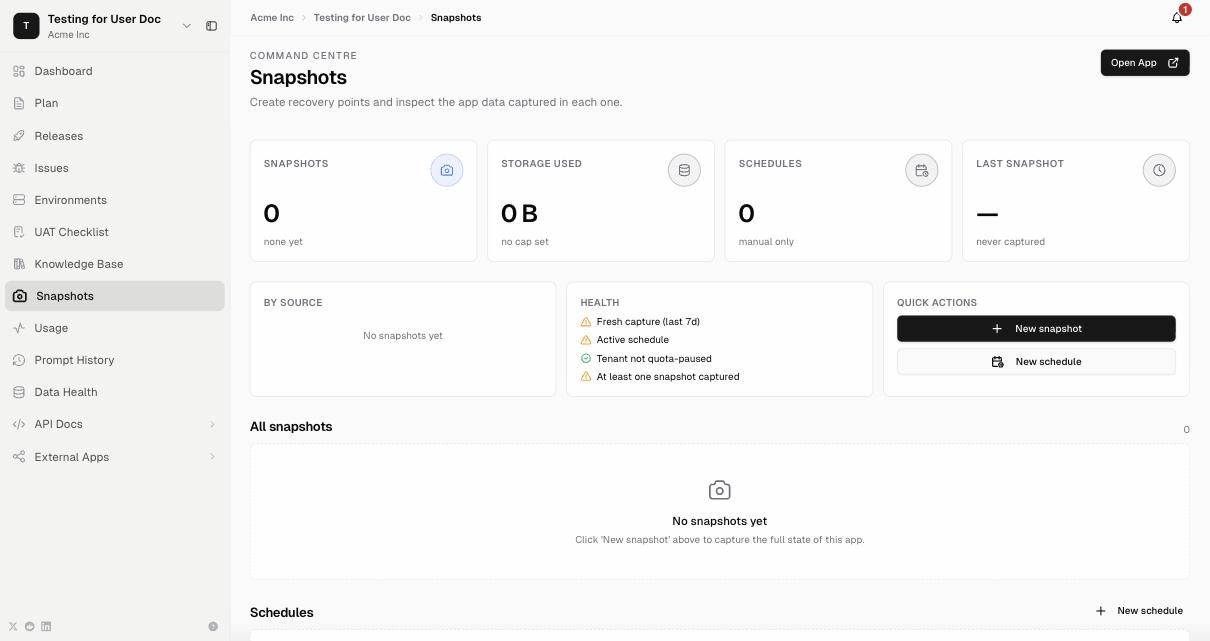
A snapshot captures the full state of the app so you can restore it later.
| Area | What it shows |
|---|---|
| Summary | Number of snapshots, storage used, number of schedules, last snapshot |
| Health | Fresh capture (last 7 days), active schedule, storage limit, at least one snapshot captured. A By source panel shows where snapshots came from. |
| Quick actions | New snapshot, New schedule |
| All snapshots | A list of your recovery points, which you can inspect |
| Schedules | Automatic snapshot schedules |
Take a snapshot now: click New snapshot. Back up automatically: click New schedule and choose how often.