App settings: General, Theme, Currency, Storage
App Settings hold the configuration for a single app. To open them, click the app name (top left) and choose App Settings.
The settings window has two groups:
- Configuration: General, Theme, Currency & Localization, Data & Storage, Connections, Workflow alerts
- Access: App Access, App Permissions
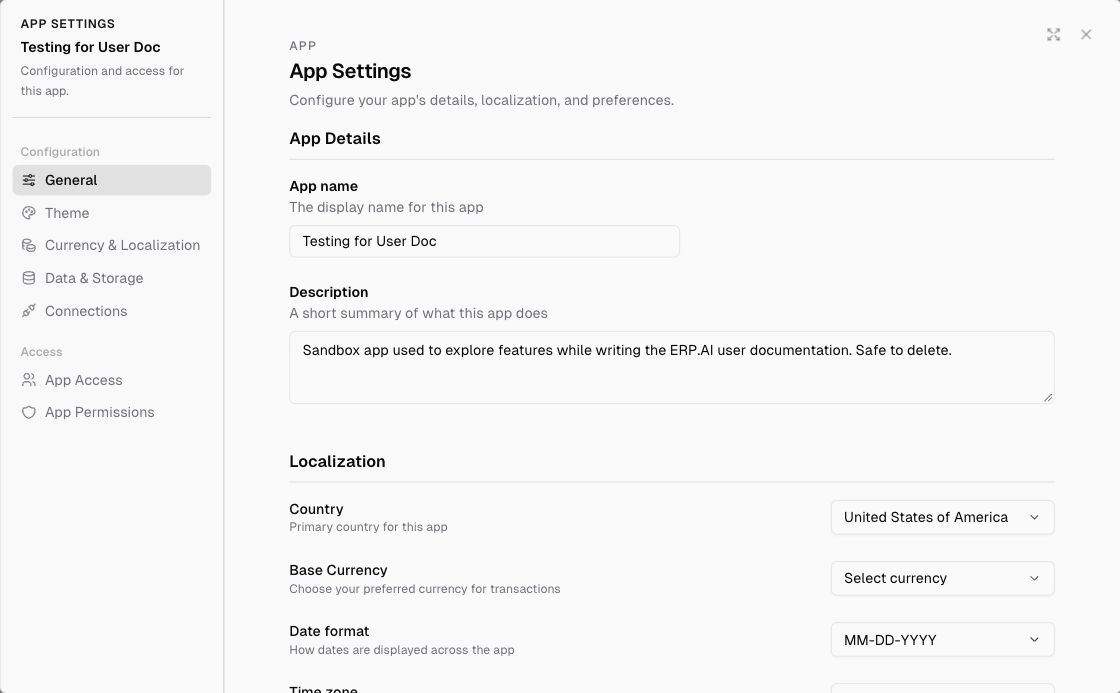
General
App Details
- App name: the display name of the app
- Description: a short summary of what the app does
Localization
| Setting | Description |
|---|---|
| Country | The app’s primary country |
| Base Currency | The default currency for transactions and currency fields |
| Date format | How dates are shown across the app, for example MM-DD-YYYY |
| Time zone | Used for scheduling and timestamps |
Features
| Feature | Description |
|---|---|
| Comments | Let users add comments on records |
| Show Mail in the app sidebar |
Danger Zone
| Action | Description |
|---|---|
| Clear App Data | Permanently removes all records. This can’t be undone. The app’s structure (tables, fields, pages) stays. |
| Delete App | Permanently deletes the app and all its data. |
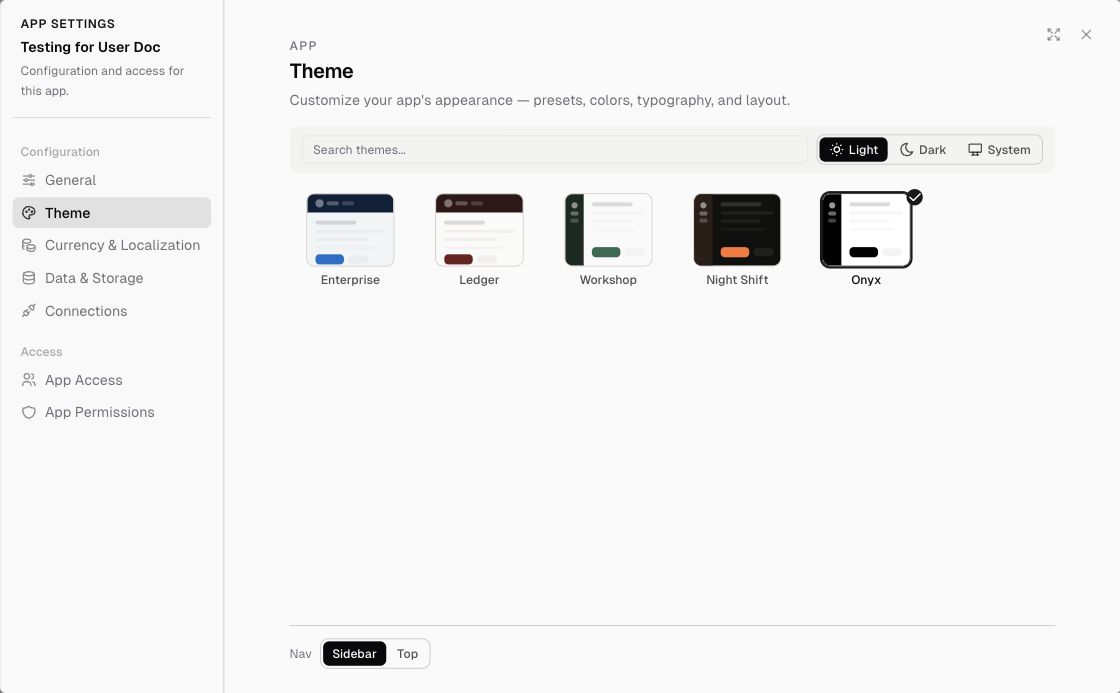
Theme
Change how the app looks for your users:
- Mode: Light, Dark, or System
- Presets: Enterprise, Ledger, Workshop, Night Shift, Onyx, Studio, Harbor, Lapis, Bloom, Steel
- Nav: Sidebar (navigation on the left) or Top (navigation across the top)
Currency & Localization (Multi Currency)
Turn on Enable Multi Currency to transact in foreign currencies. Once it’s on, you can choose the foreign currencies you use and manage their exchange rates. The formula function EXCHANGE_RATE can then be used in calculations.
Data & Storage
By default, file attachments are stored in ERP•AI’s platform storage. Click Connect a bucket to keep this app’s attachments in your own Amazon S3 bucket. Files that were already uploaded stay readable either way.
Connections
See Connections (integrations).