Skip to main content Enter
Proto Workflows Headless SaaS
Enterprise
Enterprise Identity, access, deployment, and support controls for contracted environments. Version control Branches, releases, snapshots, and history in the per-app Command Centre.
Enterprise Talk to sales. Deployment, support, security, procurement and commercial terms. Contact sales
Pricing
Search apps — ⌘K / Ctrl K Sign Up
Proto Workflows Headless SaaS
Enterprise
Enterprise home Version control Contact sales
Pricing
Sign Up
  1. Home
  2. Help
  3. ERP•AI guide
  4. Connections (integrations)

Connections (integrations)

Connections store the credentials that workflows and services use to talk to other software, such as Slack, Gmail, HubSpot, Stripe, AWS, or your own databases. You set a connection up once and then reuse it in any workflow node.

ERP•AI guide 2 min read Article 2 of 3 in App settings

On this page

  1. Open Connections
  2. What you’ll see
  3. Email (SMTP)
  4. Add a connection
  5. Tips

App settings

  1. App settings: General, Theme, Currency, Storage
  2. Connections (integrations)
  3. App access and app roles/permissions

Open Connections

  • App menu → App Settings → Connections, or
  • The key icon on the Workflows page, or
  • Manage Connections inside a workflow node

What you’ll see

  • A list of more than 140 integrations, each showing whether it’s Connected or Not connected (and how many authentication methods it supports, for example Airtable: 3 methods).
  • Search integrations…
  • Category filters: AI, CRM, ERP, IT, Communication, Custom, Developer, Finance, Other, Productivity, Trigger

Examples: ActiveCampaign, Agile CRM, Airtable, AMQP, Asana, Autotask, AWS, Baserow, Bitbucket, Bitly, Box, Brevo, Cal.com, Calendly, Chargebee, CircleCI, ClickUp, Clockify, Cloudflare, Coda, CoinGecko, and many more.
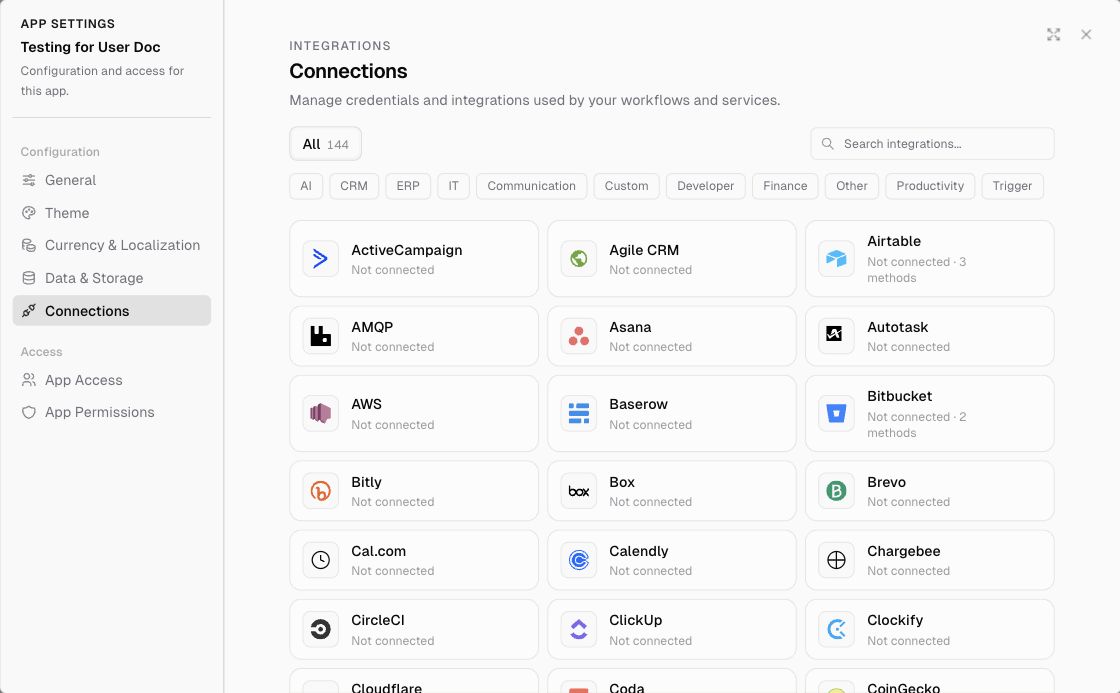
App Settings › Connections

Email (SMTP)

Workflows send email through an SMTP connection that you set up. You’ll need these details from your email provider: the SMTP server (host), port, username, and password (many providers, including Gmail and Outlook, require an app password rather than your normal one). Add it like any other connection below, then pick it in the workflow’s Email node. See the example in Build your first workflow.

Add a connection

  1. Find the integration (search or filter).
  2. Click it and choose an authentication method, such as an API key or OAuth sign-in.
  3. Enter the details the service asks for, or sign in with your account.
  4. Save. The integration now shows as connected, and you can select it under Credentials in workflow nodes.

Tips

  • Use a dedicated service account in the other system where you can, so the automation keeps working if someone leaves the company.
  • If a workflow step starts failing with authentication errors, reconnect it here.
  • Who can manage connections is controlled by the Connections permission in app roles.
PreviousApp settings: General, Theme, Currency, Storage Next App access and app roles/permissions

Related articles

Nodes reference Nodes are the steps of a workflow. Add one by clicking + after an existing node, then search or browse by category in the Add node panel.Triggers reference A trigger is the first node of every workflow. It decides when the workflow runs.

Get help from the team.

In ERP•AI, open the organization or app menu and choose Report an issue. For deployment, billing or contract questions, write to the team.

Contact the team Open ERP•AI
ERP.AI

Business apps and Proto, a personal agent for your business.

Products

  • Business Apps
  • Proto
  • Workflows
  • Headless SaaS
  • Platform

Company

  • Company
  • Enterprise
  • Pricing
  • Contact
  • Partners

Resources

  • Resources
  • Documentation
  • Help Center
  • Security
  • Legal
  • Photo credits
© 2026 ERP•AI. All rights reserved. · Built with Proto
System status

Your Privacy, Your Choice

We use essential cookies to run the site and optional cookies for features, analytics, and relevant content. See Cookie policy

Manage Your Cookie Preferences

We use cookies to enhance your experience, analyze site traffic, and serve relevant content. By clicking "Accept All," you agree to our use of cookies. You can customize your preferences at any time.

Your browser's Global Privacy Control signal is honored: advertising cookies are off.

Learn more about how we use cookies

These cookies are required for the website to function properly. They ensure security, enable basic features like page navigation, and store user session data. You cannot disable these cookies.

These cookies enable additional features that enhance your experience, such as live chat, video playback, personalized content recommendations, and remembering user preferences.

These cookies help us understand how visitors interact with our site by collecting anonymous usage data. This allows us to measure performance, detect issues, and continuously improve the user experience.

These cookies allow us and advertising partners, including X, to deliver ads tailored to your interests. They track browsing habits across sites to provide relevant advertising and measure ad effectiveness.

Meet Proto.Free to use.

A personal agent for your business.

Brief Proto. It works across your files and tools, then brings the results back.

89.5% of attempts accepted on BusinessBench.

Download Proto

Also for macOS Windows Linux

Your own model provider may charge for usage.