Skip to main content Enter
Proto Workflows Headless SaaS
Enterprise
Enterprise Identity, access, deployment, and support controls for contracted environments. Version control Branches, releases, snapshots, and history in the per-app Command Centre.
Enterprise Talk to sales. Deployment, support, security, procurement and commercial terms. Contact sales
Pricing
Search apps — ⌘K / Ctrl K Sign Up
Proto Workflows Headless SaaS
Enterprise
Enterprise home Version control Contact sales
Pricing
Sign Up
  1. Home
  2. Help
  3. ERP•AI guide
  4. Field rules: default value, display, and validation

Field rules: default value, display, and validation

Every field has three optional rules under Configure → Advanced. Rules are written with the same expression language as Formula fields.

ERP•AI guide 1 min read Article 10 of 10 in Fields (columns)

On this page

  1. Add a rule
  2. Examples
  3. Validation return values

Fields (columns)

  1. Field types overview
  2. Settings every field shares
  3. Basic field types
  4. Reference fields (linking tables)
  5. Formula fields
  6. Formula function reference
  7. Rollup fields
  8. Auto Fill fields
  9. AI Column
  10. Field rules: default value, display, and validation
RuleWhen it runsShould returnExample
Default Value RuleWhen a new record is createdA value of the field’s typeIF(Status == "New", TODAY(), "")
Display RuleWhen the record form is showntrue (show) or false (hide)Status != "Closed"
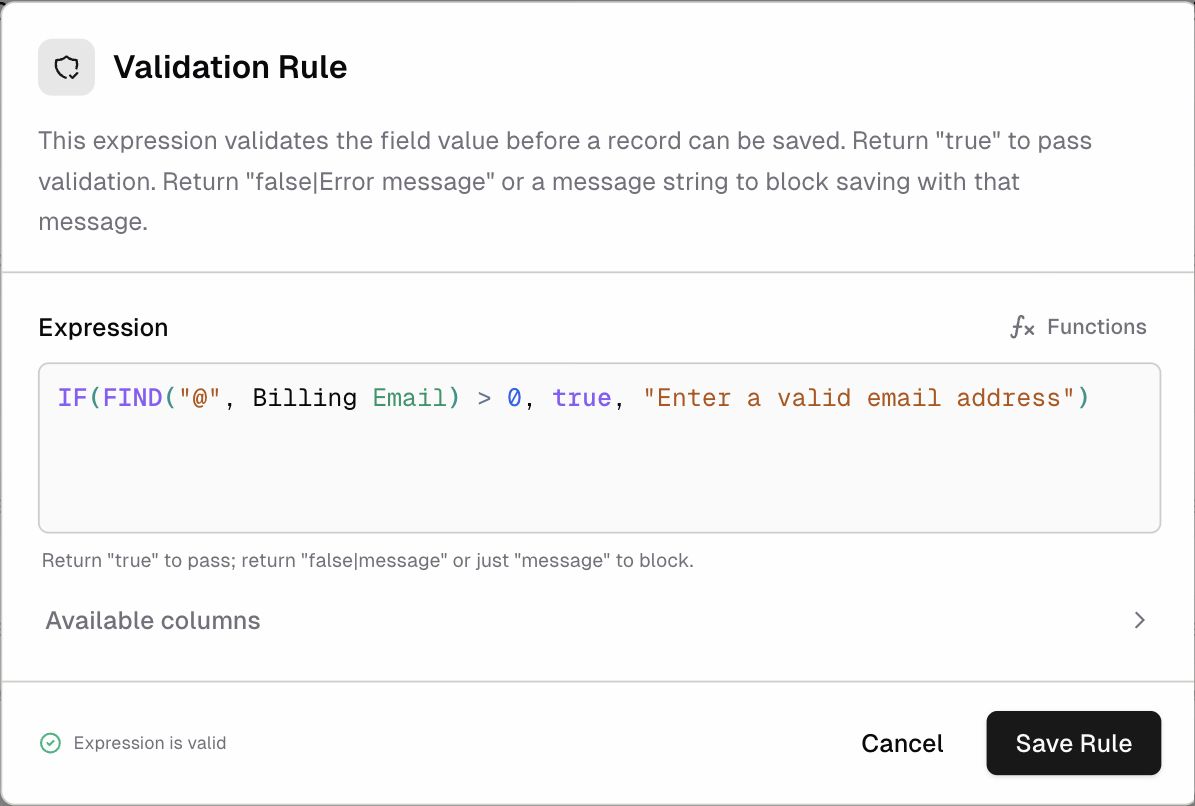
Validation RuleBefore the record is savedtrue to allow saving, or an error message to block itIF(Price > 0, true, "Price must be positive")

Add a rule

  1. Open the field’s settings (+ Column for a new field, or column header → Edit column).
  2. Click Advanced, then choose Default Value Rule, Display Rule, or Validation Rule.
  3. Type the Expression.
    • Click ƒx Functions to search the function library.
    • Open Available columns to insert fields of this record. The list also includes Current User values, so you can write rules such as “only visible to the owner”.
  4. Click Save Rule, then Save the field.
A validation rule that blocks invalid email addresses

Examples

Default the order date to today

TODAY()

Show “Rejection Reason” only when an order is rejected

Status == "Rejected"

Block discounts over 20%

IF(Discount <= 0.2, true, "Discount cannot exceed 20%")

Require an end date that’s after the start date

IF(End Date >= Start Date, true, "End Date must be on or after Start Date")

Validation return values

  • true: the value is valid and the record can be saved.
  • false|Error message: saving is blocked and Error message is shown.
  • "Error message" (just a text string): saving is blocked and the string is shown.
PreviousAI Column Next Views: saved, filtered slices of a table

Related articles

Settings every field shares When you add or edit a field, the Configure panel shows a few general settings before the options that are specific to that field type.Formula function reference ERP•AI formulas support a large library of functions.

Get help from the team.

In ERP•AI, open the organization or app menu and choose Report an issue. For deployment, billing or contract questions, write to the team.

Contact the team Open ERP•AI
ERP.AI

Business apps and Proto, a personal agent for your business.

Products

  • Business Apps
  • Proto
  • Workflows
  • Headless SaaS
  • Platform

Company

  • Company
  • Enterprise
  • Pricing
  • Contact
  • Partners

Resources

  • Resources
  • Documentation
  • Help Center
  • Security
  • Legal
  • Photo credits
© 2026 ERP•AI. All rights reserved. · Built with Proto
System status

Your Privacy, Your Choice

We use essential cookies to run the site and optional cookies for features, analytics, and relevant content. See Cookie policy

Manage Your Cookie Preferences

We use cookies to enhance your experience, analyze site traffic, and serve relevant content. By clicking "Accept All," you agree to our use of cookies. You can customize your preferences at any time.

Your browser's Global Privacy Control signal is honored: advertising cookies are off.

Learn more about how we use cookies

These cookies are required for the website to function properly. They ensure security, enable basic features like page navigation, and store user session data. You cannot disable these cookies.

These cookies enable additional features that enhance your experience, such as live chat, video playback, personalized content recommendations, and remembering user preferences.

These cookies help us understand how visitors interact with our site by collecting anonymous usage data. This allows us to measure performance, detect issues, and continuously improve the user experience.

These cookies allow us and advertising partners, including X, to deliver ads tailored to your interests. They track browsing habits across sites to provide relevant advertising and measure ad effectiveness.

Meet Proto.Free to use.

A personal agent for your business.

Brief Proto. It works across your files and tools, then brings the results back.

89.5% of attempts accepted on BusinessBench.

Download Proto

Also for macOS Windows Linux

Your own model provider may charge for usage.