Settings every field shares
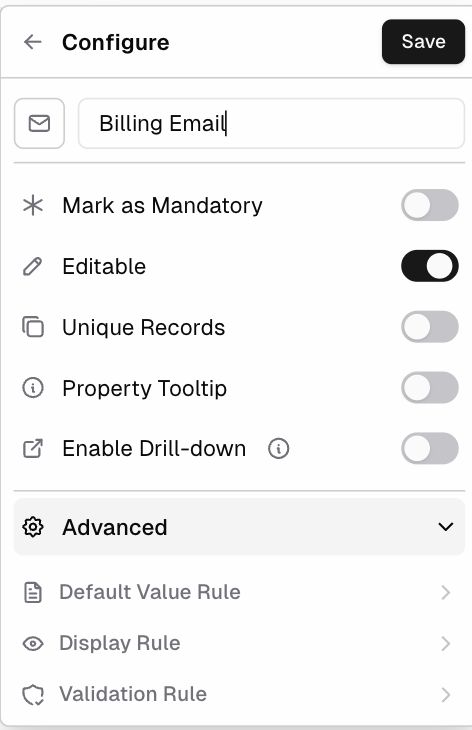
When you add or edit a field, the Configure panel shows a few general settings before the options that are specific to that field type.
| Setting | What it does |
|---|---|
| Icon + Property name | The field’s name as users see it. Click the icon to change it. |
| Mark as Mandatory | The record can’t be saved (except as a Draft) until this field has a value. |
| Editable | When off, users can see the field but can’t change it (useful for values set by workflows). On by default. |
| Is Currency | (Number, Rollup, Formula with Number output) Shows the value as money, for example $250.00. |
| Unique Records | No two records can have the same value, for example a unique email or SKU. |
| Property Tooltip | Adds help text that users see when they hover over the field. |
| Enable Drill-down | When users Cmd/Ctrl-click a cell, they go to a matching record in another table. |
| Advanced | Opens Default Value Rule, Display Rule, and Validation Rule. See Field rules. |
Calculated fields (Formula, Rollup) don’t show Editable, because their values are always calculated.
Edit, hide, reorder, or delete a field
Click the column header:
- Edit column: reopens the Configure panel
- Hide column: hides it from this layout (it isn’t deleted)
- Insert left / Insert right: adds a new field next to this one
- Duplicate column: copies the field’s setup
- Freeze column: keeps it visible while you scroll sideways
- Delete column: removes the field and its data