AI Column
An AI Column uses AI to generate a value for each record from a prompt you write. The prompt can use other fields of the record. Examples:
- “For the company #Company Name, find out whether it’s a private or public company.”
- “Summarize #Description in one sentence.”
- “Classify #Ticket Message as Billing, Technical, or Sales.”
- “Extract the invoice number and amount from #Email Body.”
Create an AI Column
- Click + Column → AI Column.
- Enter the Property name.
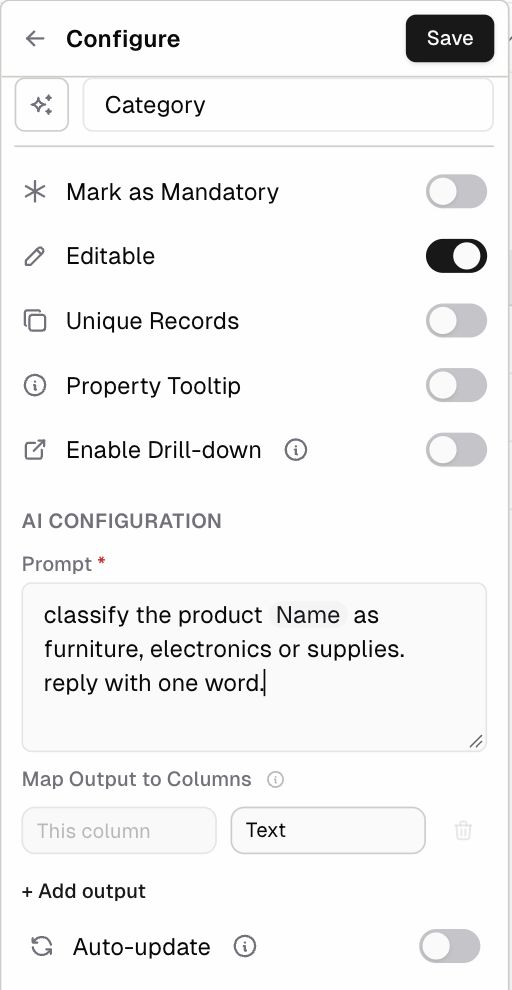
- Under AI configuration:
| Setting | Description |
|---|---|
| Prompt (required) | Your instruction to the AI. Type # and start typing a field name, then pick the field from the suggestions. It’s inserted as a highlighted field chip (for example Name). |
| Map Output to Columns | Where the AI’s answer goes. By default it goes into This column as Text. Click + Add output to have one prompt fill in several columns, for example Category and Confidence. |
| Auto-update | Re-run when row data changes. When on, the AI regenerates the value whenever the record’s fields change. |
- Click Save.
Tips for good prompts
- Be specific about the format you want back: “Answer with exactly one word: Billing, Technical, or Sales.”
- Refer only to the fields the AI needs.
- Turn on Auto-update only when the value really must stay in sync. Every re-run uses AI credits.
Cost
AI Columns use ERP•AI’s managed AI models. You pay the model cost plus an 8% agent fee, deducted from your credits. See Pricing.