Workflow settings, runs, and troubleshooting
When a workflow doesn’t run or a step fails, start here: check the workflow’s settings, look at its Runs to see what each step did, and use the troubleshooting table at the end. If emails aren’t arriving, check the SMTP connection under App Settings → Connections. If your credit balance is $0, workflows can’t make changes until you add credits.
The workflow editor at a glance
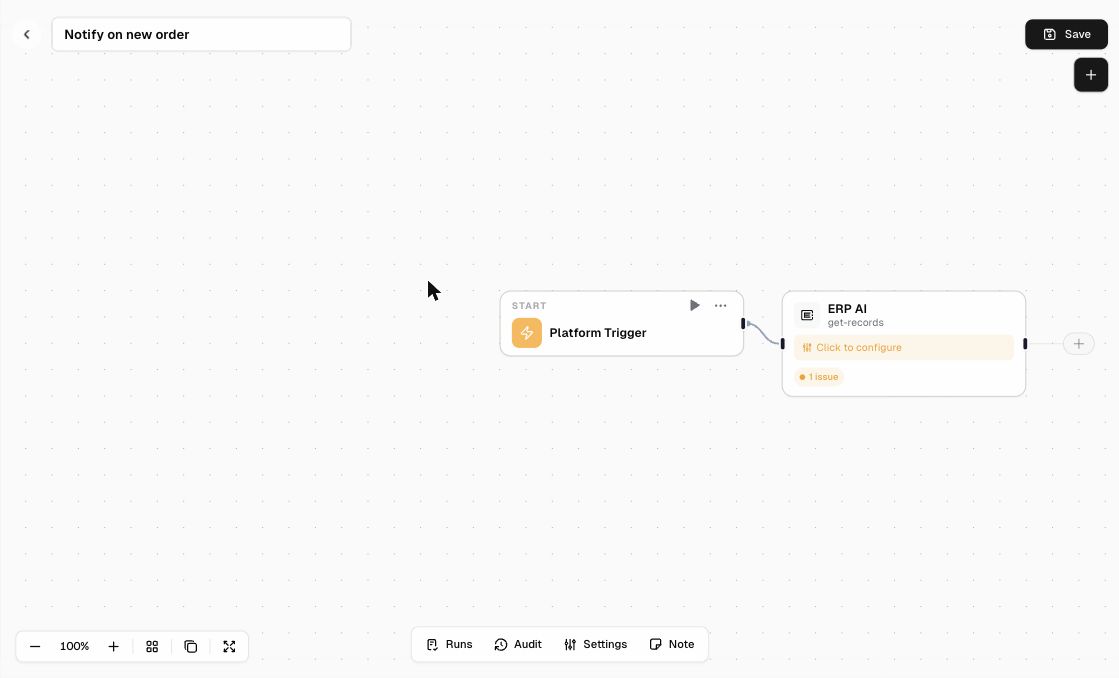
| Area | Controls |
|---|---|
| Top bar | ← Back to workflows, workflow title, Save, + (add node) |
| Canvas | Drag nodes around. Click a node to configure it. Each node has ▶ Run and ⋯ (more options) |
| Bottom-left | Zoom out, zoom level, zoom in, plus layout and view controls (for example fit to screen) |
| Bottom toolbar | Runs, Audit, Settings, Note |
Workflow settings
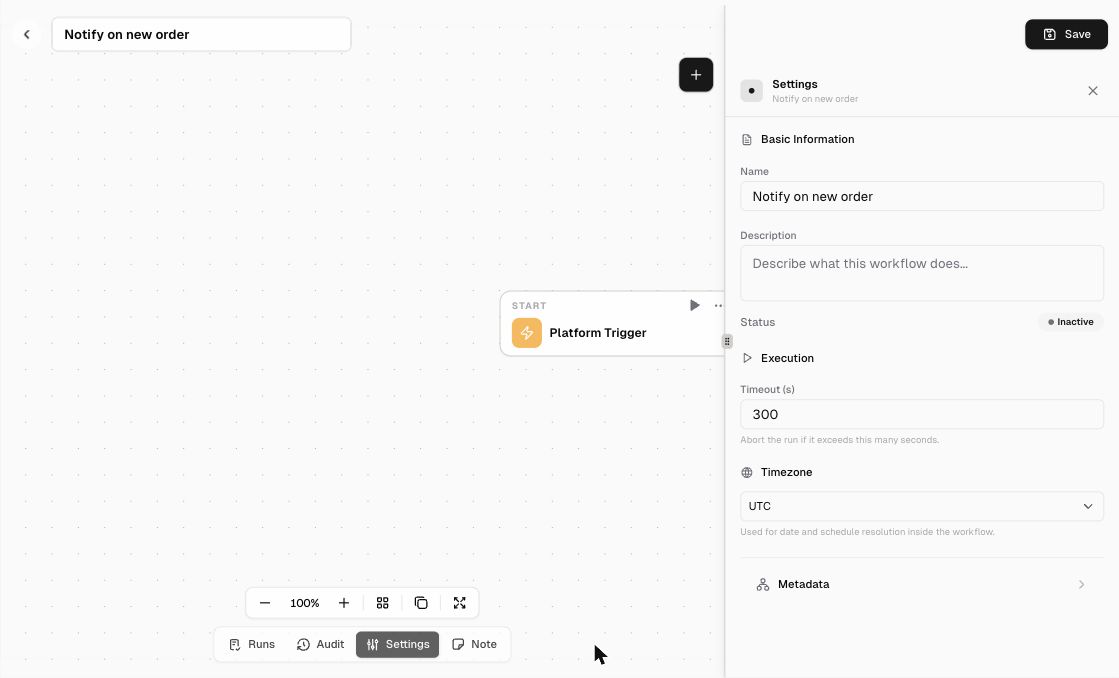
Click Settings in the bottom toolbar.
| Setting | Description |
|---|---|
| Name / Description | What the workflow is and does |
| Status | Inactive or Active. Only active workflows run on their triggers. |
| Timeout (s) | The run stops if it takes longer than this. The default is 300 seconds. |
| Timezone | Used for dates and schedules inside the workflow (default UTC) |
| Metadata | Extra information about the workflow |
Runs
Click Runs to see the workflow’s executions and inspect what each node received and produced. Use it to debug failures.
Audit
Click Audit to see who changed the workflow and when.
Notes
Click Note to add a sticky note to the canvas and document your logic for teammates.
Troubleshooting
| Problem | What to check |
|---|---|
| The workflow never runs | Is Status set to Active? Is the trigger’s Table and Event Type correct? Do the Trigger Conditions exclude the record? |
| It runs but a step fails | Open Runs, click the failed node, and read the error. Check that the node’s Credentials connection is still valid. |
| A temporary API error stops everything | Turn on Retry On Fail for that node, or Continue On Fail if the rest of the workflow should keep going |
| Later steps don’t run when there’s no data | Turn on Always Output Data on the node that returns nothing |
| The run stops partway through | Increase the Timeout in workflow Settings |
| Monitoring health | On the Workflows page, check the Failures, Success Rate, and Queue cards |