Skip to main content Enter
Proto Workflows Headless SaaS
Enterprise
Enterprise Identity, access, deployment, and support controls for contracted environments. Version control Branches, releases, snapshots, and history in the per-app Command Centre.
Enterprise Talk to sales. Deployment, support, security, procurement and commercial terms. Contact sales
Pricing
Search apps — ⌘K / Ctrl K Sign Up
Proto Workflows Headless SaaS
Enterprise
Enterprise home Version control Contact sales
Pricing
Sign Up
  1. Home
  2. Help
  3. ERP•AI guide
  4. Sign up and sign in

Sign up and sign in

To use ERP•AI you need a free account. It takes a couple of minutes: fill in a short form, confirm your email, and you’re in. Every new account gets $100 of credit, valid for 1 month, so you can start building right away. Adding team members is free.

ERP•AI guide 3 min read Article 2 of 7 in Getting started

On this page

  1. Create your account
  2. Confirm your email
  3. Your first visit
  4. Joining through an invitation
  5. Sign in
  6. Forgot your password?
  7. Sign out

Getting started

  1. What is ERP•AI?
  2. Sign up and sign in
  3. Quick start: build your first app in 10 minutes
  4. Key concepts and glossary
  5. Finding your way around ERP•AI
  6. Organizations (workspaces) and switching between them
  7. Use ERP•AI on your phone or tablet

Create your account

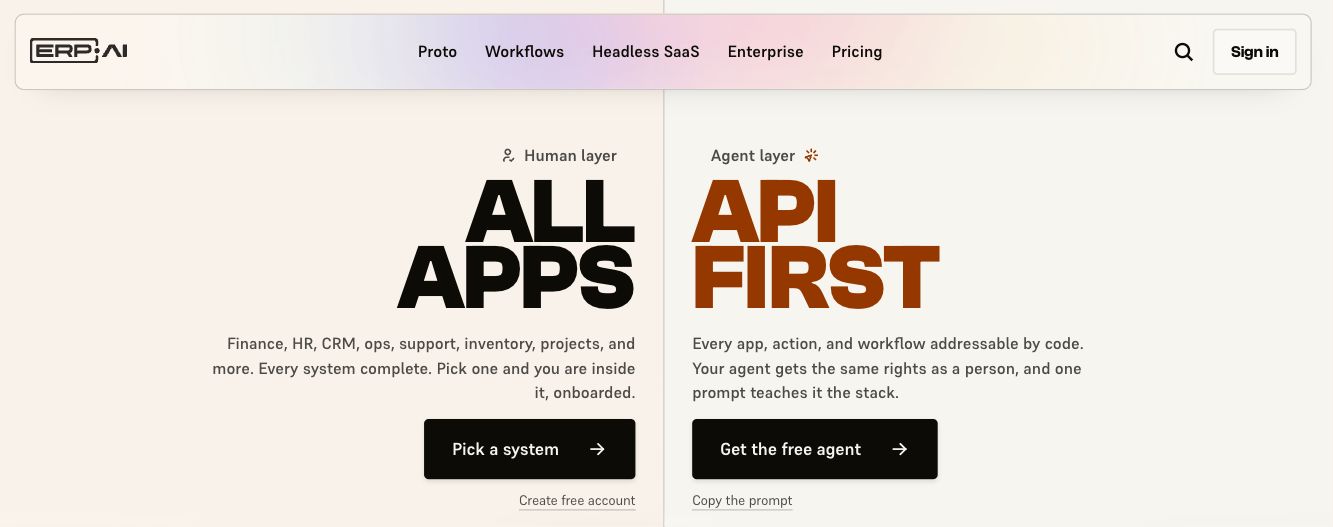
  1. Go to erp.ai and click Create free account, or go straight to apps.erp.ai/sign-up.
  • The ERP•AI website: click Create free account
    The ERP•AI website: click Create free account
    Figure: The ERP•AI website: click Create free account
  1. On the sign-up page, fill in the two fields below, or click Continue with Google to sign up with your Google account:

    • Work email: your work email address (for example you@company.com). Your name is taken from it, and you can change it later under Settings → Profile.
    • Password: at least 12 characters, with an uppercase letter, a lowercase letter, a number, and a special character, and it can’t contain your name or email. As you type, a pop-up next to the box shows which rules are met. Click the eye icon to show or hide the password.
  2. Click Start free. If a password rule isn’t met yet, ERP•AI tells you which one.

Note

By continuing, you agree to ERP•AI’s Terms and Privacy Policy. Links to both are at the bottom of the page.

Confirm your email

  1. After you click Start free, you’ll see Check your email: ERP•AI has sent a verification link to the address you entered.
  2. Open the email and click the link to activate your account.
  3. You’ll see Email verified, and ERP•AI redirects you automatically. If you’re asked to sign in, use the email and password you just created.

Tip

Didn’t get the email? Check your spam or junk folder, and make sure you typed the address correctly. If it’s wrong, go back and sign up again with the right address.

Your first visit

Once you’re in, you land on your organization’s Home page. Your organization is your company’s workspace. It holds your apps, your people, and your credit balance. See Organizations (workspaces).

From here you can:

  • Install a ready-made app from Browse Apps. See Browse and install published apps.
  • Build your own app step by step. See the Quick start.
  • Get Proto, the AI agent desktop app, from protoagent.ai/download, and describe the app you need. See Proto AI agent.
  • Invite your team. See Members and roles.

Joining through an invitation

If a colleague invited you, open the invitation email and follow the link. The sign-up page tells you that you’ve been invited to join an organization. Set your password to continue, and you’ll join that organization instead of creating a new one.

Sign in

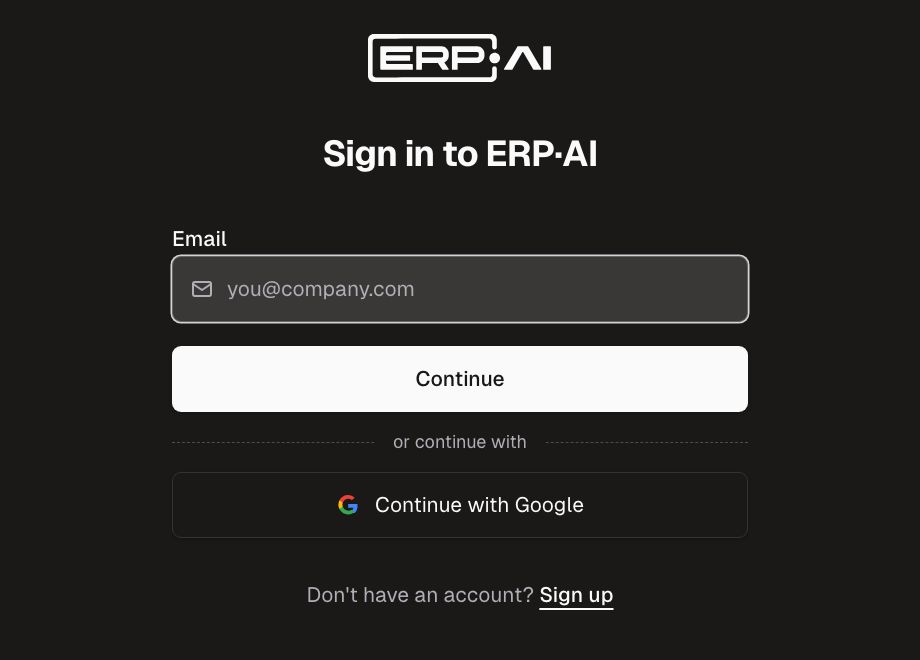
  1. Go to apps.erp.ai (or click Sign in on erp.ai).
  2. Enter your Email and click Continue.
  3. ERP•AI emails you a 6-digit code. Enter it under Code from your email and click Verify and sign in. To sign in with your password instead, click Use password instead.

You can also click Continue with Google to sign in with your Google account. If your company uses single sign-on, choose Continue with work account (when shown) and sign in with your work email.

The Sign in page
The Sign in page

Forgot your password?

  1. On the sign-in page, choose the option to reset your password.
  2. Enter your email and click Send reset code. ERP•AI emails you a verification code.
  3. Enter the code and click Verify code.
  4. Enter a New password, confirm it, and click Reset password and sign in.

Sign out

Click the organization name at the top left and choose Sign Out.

PreviousWhat is ERP•AI? Next Quick start: build your first app in 10 minutes

Related articles

What is ERP•AI? ERP•AI is a platform for building and running business software such as CRMs, inventory systems, HR tools, procurement portals, and full ERPs.Quick start: build your first app in 10 minutes In this guide you’ll build a small sales-tracking app with two linked tables, Customers and Orders.Pricing, credits, and what things cost ERP•AI uses simple, pay-as-you-go pricing.Departments, session timeout, API keys, and service accounts Organize your team into departments (Sales, Finance, Operations…). Click Add Department to create one.

Get help from the team.

In ERP•AI, open the organization or app menu and choose Report an issue. For deployment, billing or contract questions, write to the team.

Contact the team Open ERP•AI
ERP.AI

Business apps and Proto, a personal agent for your business.

Products

  • Business Apps
  • Proto
  • Workflows
  • Headless SaaS
  • Platform

Company

  • Company
  • Enterprise
  • Pricing
  • Contact
  • Partners

Resources

  • Resources
  • Documentation
  • Help Center
  • Security
  • Legal
  • Photo credits
© 2026 ERP•AI. All rights reserved. · Built with Proto
System status

Your Privacy, Your Choice

We use essential cookies to run the site and optional cookies for features, analytics, and relevant content. See Cookie policy

Manage Your Cookie Preferences

We use cookies to enhance your experience, analyze site traffic, and serve relevant content. By clicking "Accept All," you agree to our use of cookies. You can customize your preferences at any time.

Your browser's Global Privacy Control signal is honored: advertising cookies are off.

Learn more about how we use cookies

These cookies are required for the website to function properly. They ensure security, enable basic features like page navigation, and store user session data. You cannot disable these cookies.

These cookies enable additional features that enhance your experience, such as live chat, video playback, personalized content recommendations, and remembering user preferences.

These cookies help us understand how visitors interact with our site by collecting anonymous usage data. This allows us to measure performance, detect issues, and continuously improve the user experience.

These cookies allow us and advertising partners, including X, to deliver ads tailored to your interests. They track browsing habits across sites to provide relevant advertising and measure ad effectiveness.
Meet Proto.Free to use.

A personal agent for your business.

Brief Proto. It works across your files and tools, then brings the results back.

89.5% of attempts accepted on BusinessBench.

Download Proto

Also for macOS Windows Linux

Your own model provider may charge for usage.