Work with records
A record is one row in a table, such as one customer or one order. This article covers creating, editing, drafting, favoriting, printing, commenting on, locking, and deleting records.
Create a record
Using the form 1. Open the table. 2. Click + New table name (top right, for example + New Customers), or press Shift+N. 3. Fill in the fields. Mandatory fields are marked, and calculated fields (Formula, Rollup) fill in automatically. 4. Click Save, or click Draft to save an incomplete record (only when drafts are enabled for the table).
Inline (directly in the grid)
- Click + New table name below the last row, or press Shift+I, and type into the cells.
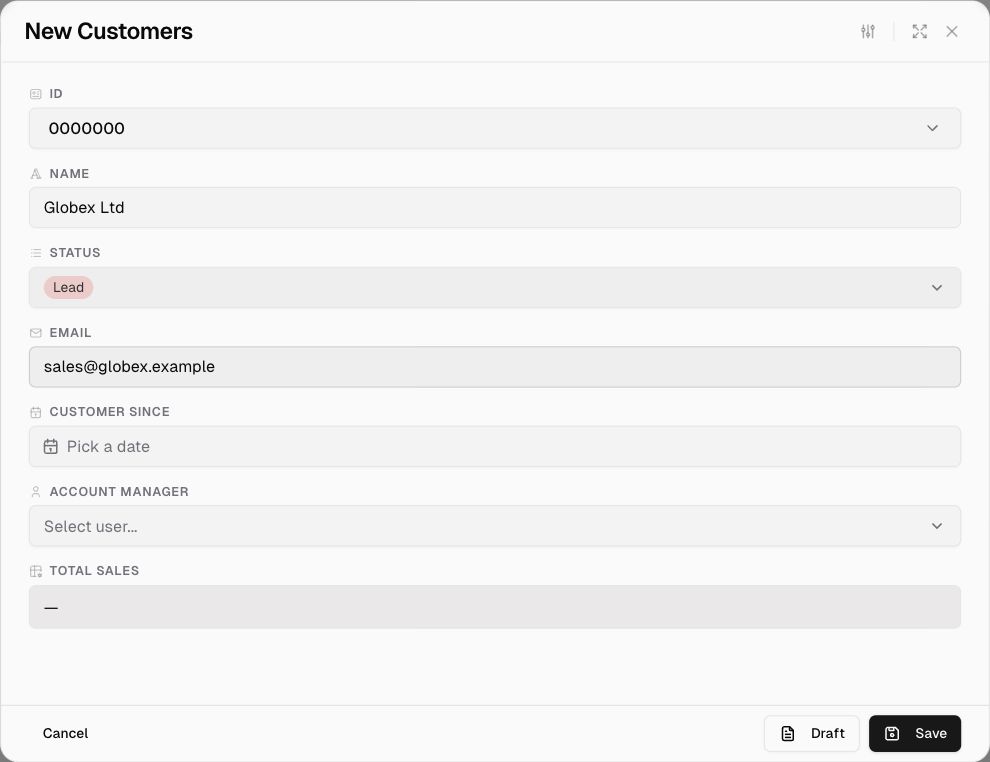
Filling in different field types
| Field | How to enter a value |
|---|---|
| Select / Multi Select | Choose from the list (you can search) |
| Date | Use the date picker |
| User | Pick a member of the app |
| Reference | Search for and pick a record from the linked table, or click + New table name to create one on the spot |
| Number with currency | Type the number. The currency symbol is shown automatically. |
| File / Attachment | Upload a file |
Open and edit a record
- Hover over a row and click the open icon next to the Id, or right-click the row and choose Open record.
- If inline editing is allowed, click a cell and edit it directly in the grid.
- Keyboard: select a record and press Shift+R (Edit Record).
The record form has these buttons in its header:
| Icon | Action |
|---|---|
| Sliders | Form settings / edit the form layout |
| ☆ | Add to favorites |
| Printer | Print record (uses your document templates) |
| Expand | Open the form full-screen |
| × | Close |
Click Save to keep your changes, or Cancel to discard them.
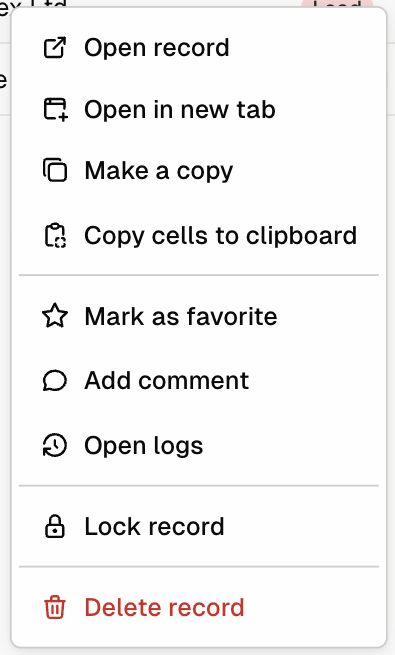
Right-click menu on a record
| Option | What it does |
|---|---|
| Open record | Opens the record form |
| Open in new tab | Opens the record in a new app tab |
| Copy link | Copies a direct link to the record |
| Make a copy | Duplicates the record (Shift+D) |
| Copy cells to clipboard | Copies the selected cell values |
| Mark as favorite | Adds the record to your favorites |
| Add comment | Starts a comment thread on the record (when comments are enabled for the app) |
| Open logs | Shows the record’s change history: who changed what, and when |
| Lock record | Prevents further edits until someone unlocks it |
| Delete record | Moves the record to Trash (Shift+X) |
Select several records at once
Tick the checkbox at the start of each row, or press Shift+A to select or deselect all. You can then run bulk actions such as delete, bulk edit, or your own Custom actions.
Drafts
When Enable Draft is on for a table, you can save a record with mandatory fields still empty by clicking Draft. Drafts are marked with the Draft system field, so you can filter for them later.
Comments
When Comments is enabled in App settings, users can discuss records. Right-click a record and choose Add comment. Whether a user can view, add, edit, or delete comments depends on their app role.
Record history and audit
- Open logs on a record shows its full change history.
- The app’s Audit logs page shows every change across the app. See Audit logs.